
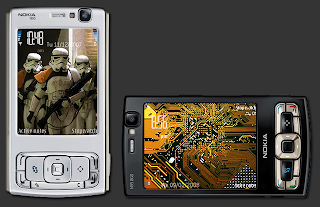
Updated FEB 2013
I started this blog in 2007 when the N95 was the latest in modern smart phones. It marked a pinnacle for Nokia with new features like GPS, 5MP camera since then Nokia have released many new phone like the 5800, N8 & Lumia 920. I have maintained this blog as i really enjoyed creating it and know many people are still using this classic phone. I also created a blog called 5800 BEST TIPS & TRICKS
2013 October Update
All missing files replaced

i have just replaced all of the old fileden missing files. You should be able to download files from all the links now.
More free games from my N95 Locker!

I have been going through my old N95 Locker replacing missing files from Fileden. I was surprised how many games and stuff i had that i never posted.
So for those of you who still use the classic N95 here are some Free games from FishLabs download below:
Firmware Update for N95 & N95 8GB
In late 2009 Nokia released Firmware updates for both N95 & N95 8GB. The latest Firmware for N95 is v35.0.02 and N95 8GB is v.35.0.01.
Nokia have listed the improvements as :
Nokia have listed the improvements as :
- Improved Music player playlists
- Improved Nokia Music store application
- Embedded N-Gage games
- Updated Maps 2.0
- Support for Flash Lite 3.0
- Improved network performance in North America
N95 & N95 8GB Resources
N95 Handbooks


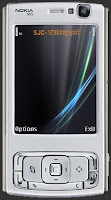

I have created two N95 icons for your computer,
A Silver and Black version. They are both in 3 formats XP/Vista/Mac.
download Silver download Black



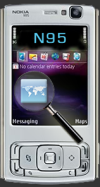
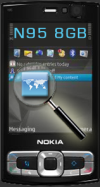
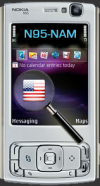
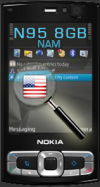
The Main differences are :Internal Memory - The main difference is of course that the N95 8GB has an 8GB internal memory compared to the N95 Classic & N95-NAM that have 148MB. This means you can store a lot more videos, music etc on the Internal memory. RAM Memory - The N95 has 48MB RAM whilst the N958GB and N95-NAM /NAM 8GB all have 128MB RAM which gives its a lot more power for running applications. Screen Size - The N95 and N95-NAM both have 2.6" QVGA screen (240x320 px) while both N95 8GB have a slightly larger 2.8" screens but with the same screen resolution (240x320)


2. Remove unwanted Applications.
You can remove applications from your phone by using the Application Manager located Menu/ Tools/ App. Mgr. The N95 comes with a few pre-installed applications that can easily be removed, as well as any other applications you may have installed and stopped using. You can remove "Welcome" app., SRE demo game, Demo games, also i personally never use the "Search" app, which used to be removable but is not removable on later firmware.
3. Install applications onto the Internal Phone Memory.
This is important especially for Themes as the internal memory is faster than the SD external memory card. My Internal memory is 147.3MB and most applications range from 2MB down to only 20kb so there should be plenty of room.
4. Close Unwanted Open Applications
Don't leave applications running by accident, check by holding down Menu key, select the unwanted application then from the Options select Remove. My N95 has 48mb Ram and uses around 70% (with the old v.12 firmware) of that on N95 background processes all the time. Which leaves only 16mb free. The "Global Race" game running in the background (Not Playing) will use 7.6kb of The "MusicPlayer" running in the background (Not Playing) will around use 1.4kb of RAM. So close what you don't need.
5. Close applications that appear stopped and save 2-3Mb.
Well this may appear similar to the section above but it takes the principal further. There are a few system applications like 'Menu' that once opened stay open and wont appear in your phone Task Manager.
I have noticed that with firmware v.20 even the Gallery stays open. The screenshots below show that i only have two applications Standby and Screenshot (just to take this image).
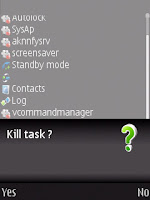
But when we look at the tasks list using Active File, we can see Menu, Contacts, Log and Gallery all still open, although this is useful if you want to reopen them quickly (as they are still running) you can save around 2-3Mb by manually closing them. If you use the on-screen memory monitor you will see the increase in ram memory as you close each application.
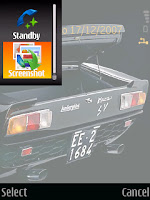
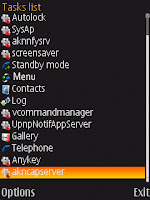
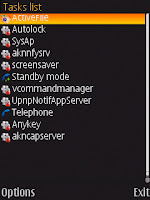
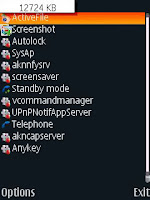
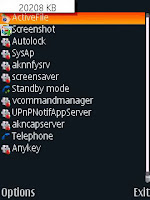 The first image shows 12.7Mb of free ram which means 76% of my Ram is in use. The second image shows 20.2Mb free ram which means only 58% is being used!
The second image was taken after i rebooted my phone and shows i gained back 7.5Mb (around 18%) from memory leaks.
Considering the camera application uses 8.4Mb of ram,(See section 21 for more details) it would almost be like leaving your camera on all the time! (Not exactly but i'm sure you can see the point).
Therefore its well worth rebooting your phone from time to time, when is up to you but be sure, you will gain back valuable Ram which will speed up opening of applications and general internal processes.
There are a couple of good freeware Memory analysis programs around that can show you how much Ram you are using and how much specific programs are using (by testing). If you like technical stuff these programs are will help you waist countless hours.
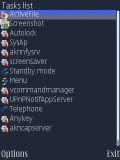 ActiveFile v1.23 without_allfiles_screencapture.SISx.
I used this application a lot . You can run an On-screen Memory Monitor by selecting Options/ Tools/ Start memory monitor. This screenshot show background tasks running (except the top two) on my N95.
7. Turn off active standby,
8.Turn off the Media Background Video/ Animation that plays when you use the Media applications, press the Multi Media key once and select Options/ background images/ and select graphics and select theme. Also you can set Image effects, Menu sounds, Start-up animation all to OFF
9. Set the Phone Log to 10 days.This is a simple way to reduce the number of call details the phone access. You will of course loose and caller details (dialled numbers/ missed calls/recieved calls) over the 10 day period. To change the Log go to Menu/ Applications/ Log/ Options/ Settings/ Log duration set to 10 days (default 30 days).
Note:
Turn up your screen brightness to Max. It does use more battery but for such a short time that you won't notice and it doesn't use more ram (not noticeably) and its improves really improves screen. To change settings Go to 'Tools/ Settings/ General/ Personalisation/ Display. Adjust to highest setting
2. Firmware Updates & How to Change Product codes to get Latest Firmware
Nokia latest firmware for the N95 classic is version 35
4. Remove your N95 operator logo
 This tweak allows you to change your operator logo with a blank image but you could place another image of your choice, there are some free design logos in the zip "logo" folder.
4. Now select your Operator code. There are a few pre-sets in the drop down box otherwise look in the Nokialogov.071220/GSM operatorcode1 or 2 for your code. You may need to use the format XXXX-XX rather than XXXXXX.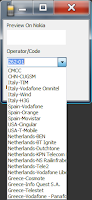
5. Now select your SDcard from the Options (left of the Export button)

6. Now select the Export and the logo will be sent to your Memory card. Disconnect your phone from the PC.
7. Now you just need to Open and SAVE the New logo The easiest way is to temporarily make your Message default folder the Memory Card. To do this select Messaging/ Options/Settings/Other/ Memory in use and select Memory card. Copy messages across if it asks and back again later (just for safety)
8. Now go to your Inbox and you should see your Blank Logo as a message. Open and SAVE the logo (it will automatically save the location).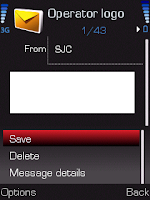
9. You can now Reset your Message default folder to Phone Memory (otherwise you cannot use the "data transfer mode" with the usb cable in the future)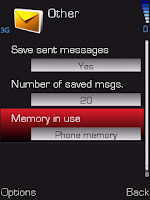
10. That should be it you should now see your operator logo gone!!
Logo still visible? if you still have the operator logo 2 things may be wrong :
1. The operator code is wrong, you will need to try another or use fromat XXXX-XX
2. You need to check Menu/Tools/Settings/General/Personalisation/Standby Mode/Operator logo select ON
N95 product codes for updating firmware if you have a problem getting the correct firmware version here
6. N95 Mobile website & Menu Icon
 UPDATE 2010: I launched a mobile version of this website back in May 2009. I used Mofuse.com which was originally a free service, it is no longer a free service although my account is still valid. It has lead to very slow bandwidth allowance and the pages no longer load properly. I am looking into a new Mobile version.
7. Themes
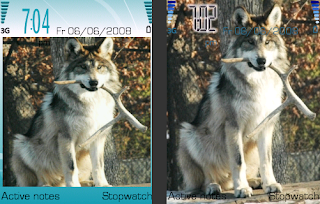 The N95 and N95 8GB use themes to show content on the phone interface. There are around 4 default themes pre installed in the phone. If you use a photo image as the theme wallpaper you will end up with an image like the one on the Far left, which may stretch the photo to fit the window as well as leaving large top and bottom area of theme background. To avoid this and get a full screen image (left) you will need to create or download a theme.There are three basic ways to get themes for your N95.
1) You can download free themes from websites like Mobile9 Zedge
2) You can create your own Themes free online with Ownskin.com
Its completely free and makes creating themes pretty easy, you can upload your picture, change the colours of the text and battery bars etc. under the advanced options. It creates a .sis file which you can send to your phone via cable etc. You can also share your theme with other users. Its an easy way to make themes, and well worth trying, though i do find it a bit basic
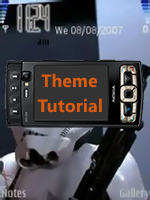
3) I have made a tutorial for creating themes with the Nokia carbide theme program, which deals with creating transparent navi panes, and handle key pair certificates.
To view the tutorial click here.
Well the best way make your own themes is with Nokia's free software. Its not the easiest program to use but once you have mastered it its pretty simple, my advise is start with the default theme and just alter the active /inactive background. Use the Nokia PC suite to transfer the .sis file to your phone. Nokia Forum For Carbide Theme Studio 3.4
This link above has more details on the Theme Studio. I recommend reading and downloading the free tutorial Getting Started is the basic starter guide
Here are some themes i have created, Now with WideScreen improved image and music player changes for Firmware v.20,you can download the Themes from my Tutorial page or click the images.


8. Symbian 60 3rd Edition Freeware
There are a few feature missing in symbian phones as far as i am concerned. There is no stopwatch and the calculator is disgusting and no torch! so download some freeware for your phone. I really don't like "shareware" so i have concentrated on freeware.
I have created a separate freeware page with more applications, Click on the image to the left the view the new page.
Below are a few of the applications featured on the page.
 Active Notes
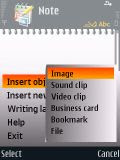
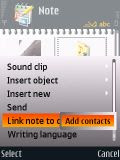
This freeware application is basically 'Notes' on Steroids. Its a really good app. that allows you to save a text notes and add an Image, Sound clips and also add any note to a contact. It can even do more. . . Read Here
 Timebar
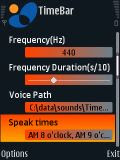
Timebar is a very useful freeware application that can show the time on all screens whether you are in the menu, music player etc. It can also play a tone or voice alert every hour on the hour (You can turn off particular hours in the settings) . There are only English and Chinese voice tags. The original English Voice Tags were missing 11am,12am,11pm and12pm, so i have edited them and also created new cleaner English Alerts.
You will need to place the 'Timebar' Folder in your Phone Memory/ Data/ Sounds/ Timebar (Folder) to get the hourly alert to work. You can change the location and colour of the clock in the settings. If you want to make Voice tags in other languages you can get Text to speech here
I have created new sets of Timebar Voice Alerts:
 They both use a Robotic voices and actual sounds from the movie and game. You will need to replace the existing timebar folder to use the new sounds and adjust the volume level as they are reasonably loud. There is also a new 24 hour timebar set by Trek. click the images to download
9. Keypad Shortcuts
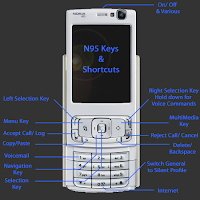 Here are some Keypad & Shortcut Basics you should know for your N95 and N95 8GB
Hold down Right navigation key to launch Voice commands (Contacts name or Application name)
Press the MultiMedia Key to open MultiMedia Menu
Hold down the MultiMedia key to start Music player
Press the Menu key to open Main Menu
Hold down the Menu key to start Task Manager
Hold down 0 to launch Web Browser
Hold down # to Switch between General and Silent Profiles
Hold down "little pencil" key to activate Copy or Paste (Text) mode
Press the "c" key to Delete or Backspace details
Hold down key 1 to activate Voicemail retrieval (most networks)
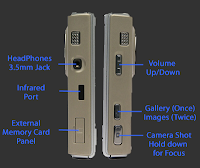 Some useful side action keys are:
Press Gallery Key once to open Gallery (Fullscreen)
Press Gallery Key twice to open Gallery Images & Video (Small)
Press the Camera Capture Key Half down to focus the Camera
Press the Camera Capture key down full to take shot or Start Video Camera
10. Change your N95 & N95 8GB Font Easily
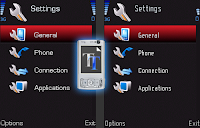 I have found a way to easily change your N95 font. In the past it was possible to change your font, but it was a rather complicated process of changing files, making copies, renaming other files and after that i could never get it to work properly!!
WARNING - I am currently using the Eurostile font without any problems on my N95.
 Change font on N95 tutorial
1. You need to download
Change font on N95 tutorial
1. You need to download  FontRouter20071109 .sis here. This applications need to be signed you can do this via the symbian signed website details in Section 3.
2. Install the application into the PHONE memory. You will not find any application icon in your Menu but there will now be a folder in C:/data/Fonts (As shown below).
To learn how to easily import image tags to Mp3 files click here.
2) You can manually add Album Art to albums within your N95, but you can only add Artwork to individual tracks or Albums not playlists or Artists. The advantage of using this manual system is that you can create or edit your own image rather than the original Album cover artwork. First create album art images 160px X 160px (smaller images are degraded when viewed, around 20Kb size).Transfer to phone.
Select: MusicPlayer/MusicMenu/Albums/(ie)TheStrokes/Options/AlbumArt/Options/Change/ Select Image/Yes(for all songs in the Album)
Mp3 Ringtones and Message tones editing
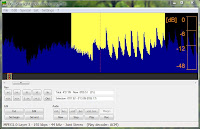
If you want to make music clips from MP3's the best freeware program i've used is Mp3Directcut. It's a brilliant tool to cut up any music or sound clip, so u can make a ringtone of text message sound. screenshot:
What's your message tone? we've all got our favourites. Ive found some cool websites with free sounds everything from StarWars, Homer Simpson to alligator grumbles.
Movie Wav Simpson Crazy FindSounds
SimplytheBest Ultrasonic Ringtones
You can save most of the MP3 files directly to your PC or Use Rightmouse and select "Save Link As" then save to your desktop. You can use the "Super" freeware program (in section 13. on MP4) to convert .wav files into MP3's.
Add your Favourite logo to your N95
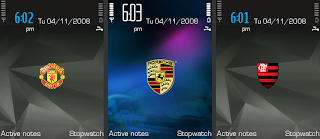 If you have a favourite Football team badge or logo of anything at all, that you want to display on your Phone, it really very easy to do.
You dont have to create a Theme all you need get a copy of your logo and make the background transparent using Adobe Photoshop etc., then add it as you wallpaper.
For more info on creating the image or download the Man. Utd or Porsche Badges
Go to my Theme page (Middle of the page)



N95 Handbooks
If you have lost your Handbook or just cant be bothered to find it! no problem, you can view and download a PDF version from the Nokia website. Just click on correct image N95 (N95-1) and N95 8GB (N95-2) to link to the Pdf.
Desktop Icons


I have created two N95 icons for your computer,
A Silver and Black version. They are both in 3 formats XP/Vista/Mac.
download Silver download Black
Additional Pages and Tutorials
I have created Additional pages with tutorials with Freeware etc. as well and links to other tutorials. Click on the image below to view other Pages.
I have created Additional pages with tutorials with Freeware etc. as well and links to other tutorials. Click on the image below to view other Pages.
N95 Versions
There are 6 versions of the N95, The N95 Classic (N95-1), the N95 8GB (N95-2) the U.S version of N95-NAM Classic (N95-3) and the U.S N95 8GB NAM (N95-4) the Chinese N95 Classic (N95-5) Chinese N95 8GB (N95-6)
The Main differences are :Internal Memory - The main difference is of course that the N95 8GB has an 8GB internal memory compared to the N95 Classic & N95-NAM that have 148MB. This means you can store a lot more videos, music etc on the Internal memory. RAM Memory - The N95 has 48MB RAM whilst the N958GB and N95-NAM /NAM 8GB all have 128MB RAM which gives its a lot more power for running applications. Screen Size - The N95 and N95-NAM both have 2.6" QVGA screen (240x320 px) while both N95 8GB have a slightly larger 2.8" screens but with the same screen resolution (240x320)
Battery Size - The N95 has the 950mAH BL-5F whilst the other N95 8GB's and N95-NAM all have the larger 1200mAH BL-6F
Camera Shutter - Due to the increased size of the Battery Nokia removed the Camera shutter on the N95 8GB and both NAM versions.
Firmware - All 4 models have different Firmware versions, the N95 and N95 8GB both have "On Demand Paging" whilst the US version at present dont have this feature.
External SD Memory Cards - Nokia only recommend External micro SD cards up to 4GB on the N95 classic and 2Gb on the N95-NAM. I have been running a 4GB SD card on my N95 since the start when they only recommended 2GB. The current Maximum SD card available is 8GB. Both the N95 8GB's do not have a external memory card slot.
Network - The U.S version supports Quadband GSM, 3G 850/1900 for North America whilst the other 2 versions support Quadband GSM, 3G 2100 for Europe and the rest etc.
For a Further analysis of 4 versions see The NokiaBlog and Wiki
N95 Top Tips & Tricks
1. Speed up your N95
Network - The U.S version supports Quadband GSM, 3G 850/1900 for North America whilst the other 2 versions support Quadband GSM, 3G 2100 for Europe and the rest etc.
For a Further analysis of 4 versions see The NokiaBlog and Wiki
N95 Top Tips & Tricks
1. Speed up your N95
Here are my Top 10 tips improving the performance of your N95
1. Update your Firmware!
If you have just got an N95 "Updating the firmware" is the main tip i can give. Every firmware release made improvements and fixed bugs in the previous software. Version 20 added "On Demand Paging" and version 30 added Auto-Rotation to the N95. To quickly check which firmware version you have press *#0000# on your keypad.
If you have just got an N95 "Updating the firmware" is the main tip i can give. Every firmware release made improvements and fixed bugs in the previous software. Version 20 added "On Demand Paging" and version 30 added Auto-Rotation to the N95. To quickly check which firmware version you have press *#0000# on your keypad.
The Nokia N95 firmware v.20 introduced have "On Demand Paging". Demand Paging is a more efficient way of loading data into RAM; Code that does need to be executed is not loaded into RAM" which means its faster and uses less Ram Memory which leaves more free Ram making applications open quicker. For more details in updating your firmware see section 2.
Below is a chart showing the gain in free Ram after updating to the v.20 firmware based on results from my own N95 phone.


2. Remove unwanted Applications.
You can remove applications from your phone by using the Application Manager located Menu/ Tools/ App. Mgr. The N95 comes with a few pre-installed applications that can easily be removed, as well as any other applications you may have installed and stopped using. You can remove "Welcome" app., SRE demo game, Demo games, also i personally never use the "Search" app, which used to be removable but is not removable on later firmware.
3. Install applications onto the Internal Phone Memory.
This is important especially for Themes as the internal memory is faster than the SD external memory card. My Internal memory is 147.3MB and most applications range from 2MB down to only 20kb so there should be plenty of room.
4. Close Unwanted Open Applications
Don't leave applications running by accident, check by holding down Menu key, select the unwanted application then from the Options select Remove. My N95 has 48mb Ram and uses around 70% (with the old v.12 firmware) of that on N95 background processes all the time. Which leaves only 16mb free. The "Global Race" game running in the background (Not Playing) will use 7.6kb of The "MusicPlayer" running in the background (Not Playing) will around use 1.4kb of RAM. So close what you don't need.
5. Close applications that appear stopped and save 2-3Mb.
Well this may appear similar to the section above but it takes the principal further. There are a few system applications like 'Menu' that once opened stay open and wont appear in your phone Task Manager.
I have noticed that with firmware v.20 even the Gallery stays open. The screenshots below show that i only have two applications Standby and Screenshot (just to take this image).
But when we look at the tasks list using Active File, we can see Menu, Contacts, Log and Gallery all still open, although this is useful if you want to reopen them quickly (as they are still running) you can save around 2-3Mb by manually closing them. If you use the on-screen memory monitor you will see the increase in ram memory as you close each application.


6.Reboot to remove Memory leaks
My N95 has a 48Mb ram (memory power) and uses around 60-70% on background tasks (less with v20 firmware), but when using various applications (often 3rd party freeware) some ram is lost by applications not fully releasing back the ram when they are closed, this is known as "Memory leaks". The two screenshots below show a "before and after" rebooted phone with the same tasks running.

 The first image shows 12.7Mb of free ram which means 76% of my Ram is in use. The second image shows 20.2Mb free ram which means only 58% is being used!
The second image was taken after i rebooted my phone and shows i gained back 7.5Mb (around 18%) from memory leaks.
Considering the camera application uses 8.4Mb of ram,(See section 21 for more details) it would almost be like leaving your camera on all the time! (Not exactly but i'm sure you can see the point).
Therefore its well worth rebooting your phone from time to time, when is up to you but be sure, you will gain back valuable Ram which will speed up opening of applications and general internal processes.
There are a couple of good freeware Memory analysis programs around that can show you how much Ram you are using and how much specific programs are using (by testing). If you like technical stuff these programs are will help you waist countless hours.
 ActiveFile v1.23 without_allfiles_screencapture.SISx.
I used this application a lot . You can run an On-screen Memory Monitor by selecting Options/ Tools/ Start memory monitor. This screenshot show background tasks running (except the top two) on my N95.
7. Turn off active standby,
I like a clean screen so i always turn off active standby, internal n95 functions dont use as much Ram as larger power hungry games etc. but turning off Active standby will gain you around 400kb of Ram, its not a lot but unless you use it a lot, i would get rid. To turn off Active Standby go to Tools/ Settings/ General/ standby Mode/ Active standby and select Off
8.Turn off the Media Background Video/ Animation that plays when you use the Media applications, press the Multi Media key once and select Options/ background images/ and select graphics and select theme. Also you can set Image effects, Menu sounds, Start-up animation all to OFF
9. Set the Phone Log to 10 days.This is a simple way to reduce the number of call details the phone access. You will of course loose and caller details (dialled numbers/ missed calls/recieved calls) over the 10 day period. To change the Log go to Menu/ Applications/ Log/ Options/ Settings/ Log duration set to 10 days (default 30 days).
Note:
Turn up your screen brightness to Max. It does use more battery but for such a short time that you won't notice and it doesn't use more ram (not noticeably) and its improves really improves screen. To change settings Go to 'Tools/ Settings/ General/ Personalisation/ Display. Adjust to highest setting
2. Firmware Updates & How to Change Product codes to get Latest Firmware
Nokia latest firmware for the N95 classic is version 35
Nokia released around 5 firmware updates for the N95 & N95 8G with each release they made improvements and fixed bugs. As the last firmware update was in 2009 most models regardless of their product code should be able to get the latest firmware version 35. To check which firmware version press *#0000# on your keypad.
The firmware v.20 nokia added a feature called "On Demand Paging" and version v.30 added Auto-Rotation to the N95. On Demand Paging is a more efficient way of loading data into RAM "Code that does need to be executed is not loaded into RAM" which means its faster and uses less Ram Memory!!
If you have never bothered with updating your firmware because its a hassle, or a bit worrying loosing
some data or can't be bothered reinstalling application well this is the time to do it!!
The firmware v.20 nokia added a feature called "On Demand Paging" and version v.30 added Auto-Rotation to the N95. On Demand Paging is a more efficient way of loading data into RAM "Code that does need to be executed is not loaded into RAM" which means its faster and uses less Ram Memory!!
If you have never bothered with updating your firmware because its a hassle, or a bit worrying loosing
some data or can't be bothered reinstalling application well this is the time to do it!!
Now there are a few basic things you need to understand before you should undertake a Firmware update!
1. You may need to "Debrand" your N95 to get the very latest Firmware. Debranding does theoretically invalidate your phone warranty.
2. You may loose some data Calendar entries, although the Nokia Suite can back-up all your old data, except applications installed on the Phone Memory.
3. You will have to reinstall all your applications and phone settings as the phone memory will be completely wiped .
How to Debrand your N95
3. Updating your Firmware Tutorial with Nokia Suite
 Nokia Suite
It is possible to upgrade your firmware without changing your product code, As the last firmware update was in 2009 most models regardless of their product code should be able to get the latest firmware version 35. The Nokia Suite will check which firmware you can receive. It can also back up your data like Contacts, Calendar entries, Notes anything that is stored on the Phone's Memory card, but anything on your External memory card will not be effected. Applications that are installed on phone memory will be lost and will need to be reinstalled.Your Sim card data is safe also, but i usually back up my contacts to my Sim card and retrieve them to contacts later.
Nokia Suite
It is possible to upgrade your firmware without changing your product code, As the last firmware update was in 2009 most models regardless of their product code should be able to get the latest firmware version 35. The Nokia Suite will check which firmware you can receive. It can also back up your data like Contacts, Calendar entries, Notes anything that is stored on the Phone's Memory card, but anything on your External memory card will not be effected. Applications that are installed on phone memory will be lost and will need to be reinstalled.Your Sim card data is safe also, but i usually back up my contacts to my Sim card and retrieve them to contacts later.
If you have debranded your phone using the NOKIA DEBRANDING tutorial above, then you will get the latest firmware version.
2. You may loose some data Calendar entries, although the Nokia Suite can back-up all your old data, except applications installed on the Phone Memory.
3. You will have to reinstall all your applications and phone settings as the phone memory will be completely wiped .
How to Debrand your N95
This is a lot simpler that it first might seem and although it invalidates your warranty you could always reset the code before taking it to a dealer.
Debranding changes your phones product number to a generic area code ie Europe and removes some Network provider detailing ie My "Web n Walk" became "Web" loosing any reference to T-Mobile.
Debranding tutorial is available at: NOKIA DEBRANDING
A full list of product codes is available here.
3. Updating your Firmware Tutorial with Nokia Suite
Nokia Suite
It is possible to upgrade your firmware without changing your product code, As the last firmware update was in 2009 most models regardless of their product code should be able to get the latest firmware version 35. The Nokia Suite will check which firmware you can receive. It can also back up your data like Contacts, Calendar entries, Notes anything that is stored on the Phone's Memory card, but anything on your External memory card will not be effected. Applications that are installed on phone memory will be lost and will need to be reinstalled.Your Sim card data is safe also, but i usually back up my contacts to my Sim card and retrieve them to contacts later. If you have debranded your phone using the NOKIA DEBRANDING tutorial above, then you will get the latest firmware version.
1. Download and install the Nokia Suite. Make sure your battery over 50% charged or plug it in during update.
2. Start the Nokia Suite on your PC then connect the Phone via USB cable. Then select "Software Updates" from the Toolbar at the top application. The application will check which updates are available, select what you want and then select Install. If it says version.20 or version.21 are only available you will need to change your code (Debrand) version 35 is the latest firmware
The Suite will then start downloading the updates and then backup of your data before installing the Firmware update to your phone.
2. Start the Nokia Suite on your PC then connect the Phone via USB cable. Then select "Software Updates" from the Toolbar at the top application. The application will check which updates are available, select what you want and then select Install. If it says version.20 or version.21 are only available you will need to change your code (Debrand) version 35 is the latest firmware
The Suite will then start downloading the updates and then backup of your data before installing the Firmware update to your phone.
3. That's it! You phone should now be faster than its ever been! Oh yeah now the boring bit of reinstalling your old data, settings and applications!
4. Remove your N95 operator logo
 This tweak allows you to change your operator logo with a blank image but you could place another image of your choice, there are some free design logos in the zip "logo" folder.
I have adapted this tutorial as the guides given (zip folder) & other people do not work effectively on N95.
The main changes are:
• If you use the memory Card as your Default message folder you cannot connect your phone via "Data transfer mode". Therefore it is better to temporarily select default memory card to save the logo then switch back to phone memory for default message folder. no need to understand just follow the tutorial
The main changes are:
• If you use the memory Card as your Default message folder you cannot connect your phone via "Data transfer mode". Therefore it is better to temporarily select default memory card to save the logo then switch back to phone memory for default message folder. no need to understand just follow the tutorial
• You will need to find you specific Operator code from the lists. You may need to use the format XXXX-XX rather than XXXXXX. I have provided 2 list of GSM operator code in case you find some dont work.
Change your operator logo tutorial
1. Download the NokiaLogo v.071220 Zip folder by Jarod. He has also provided Chinese, Italian and Russian installation guides but they are not specific for N95. Unzip the folder.
Change your operator logo tutorial
1. Download the NokiaLogo v.071220 Zip folder by Jarod. He has also provided Chinese, Italian and Russian installation guides but they are not specific for N95. Unzip the folder.
2. Connect your Phone to PC via "Data transfer mode". The open the NokiaLogo.exe. You should now see as small application box.
3. To load the 'Blank logo' double click on the JAROD image and navigate to the Nokialogov.071220 folder/ logo and select the blank.bmp. (for other logos select alternative logo from the folder)
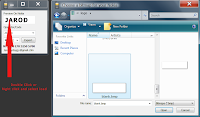

4. Now select your Operator code. There are a few pre-sets in the drop down box otherwise look in the Nokialogov.071220/GSM operatorcode1 or 2 for your code. You may need to use the format XXXX-XX rather than XXXXXX.

5. Now select your SDcard from the Options (left of the Export button)

6. Now select the Export and the logo will be sent to your Memory card. Disconnect your phone from the PC.
7. Now you just need to Open and SAVE the New logo The easiest way is to temporarily make your Message default folder the Memory Card. To do this select Messaging/ Options/Settings/Other/ Memory in use and select Memory card. Copy messages across if it asks and back again later (just for safety)
8. Now go to your Inbox and you should see your Blank Logo as a message. Open and SAVE the logo (it will automatically save the location).

9. You can now Reset your Message default folder to Phone Memory (otherwise you cannot use the "data transfer mode" with the usb cable in the future)

10. That should be it you should now see your operator logo gone!!
Logo still visible? if you still have the operator logo 2 things may be wrong :
1. The operator code is wrong, you will need to try another or use fromat XXXX-XX
2. You need to check Menu/Tools/Settings/General/Personalisation/Standby Mode/Operator logo select ON
5. Nokia N95 codes
Here is a short list of useful codes. They are very simple to use, just type in the code and the details will show on your screen.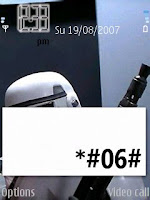
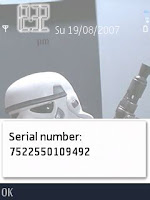 *#0000# To view Firmware version.
*#06# (*#0M#) To view Serial number, IMEI (International Mobile Equipment Identity).
*#2820# (*#BTA0#) To view Bluetooth device address.
*#62209526# (*#MAC0WLAN) To view the MAC address of the WLAN adapter. This is maybe necessary for wlan encrypted setup.
*#92702689# (*#WAR0ANTY#) To view the life timer information. This is the total time of phone calls in minutes.
Warning : All old data will be lost when hard reset is used. Ive not tested tthe codes below take no responsibility for any problems arrising from using them.
Soft reset (*#7780#) : Restores ini files from rom but preserves user data (photos, 3rd party apps etc).The phone will ask you a confirmation, enter a security code (12345 by default)
Hard Reset (*#7370#) : This reformats completely the C: drive. All applications and files stored on this drive will be lost and clean default files will be rewritten. The phone will ask you a confirmation and enter a security code (12345 by default)
There is another key combination which is used to hard reset the phone (similar to #*7370#). It is useful in some cases, for example when the phone cannot reboot. The trick is by switching off the phone then press and hold Call key (Green key) + * key + 3 key + power button for a couple of seconds.
*0# If you want to know when someone has received your text message on their phone use this code start your message with *0# This is similar to "Delivery Reports" feature available on most phones but you will receive a details text rather than a confirmation note on screen.It will not show up on their message and a text will be sent to your phone when it has arrived in theirs. Best to leave a space before you start your first word in the message. You wont know when they read the message but you will know when they received it!
NOTE : This feature has only been tested on UK phones Networks.
Here is a short list of useful codes. They are very simple to use, just type in the code and the details will show on your screen.

 *#0000# To view Firmware version.
*#06# (*#0M#) To view Serial number, IMEI (International Mobile Equipment Identity).
*#2820# (*#BTA0#) To view Bluetooth device address.
*#62209526# (*#MAC0WLAN) To view the MAC address of the WLAN adapter. This is maybe necessary for wlan encrypted setup.
*#92702689# (*#WAR0ANTY#) To view the life timer information. This is the total time of phone calls in minutes.
Warning : All old data will be lost when hard reset is used. Ive not tested tthe codes below take no responsibility for any problems arrising from using them.
Soft reset (*#7780#) : Restores ini files from rom but preserves user data (photos, 3rd party apps etc).The phone will ask you a confirmation, enter a security code (12345 by default)
Hard Reset (*#7370#) : This reformats completely the C: drive. All applications and files stored on this drive will be lost and clean default files will be rewritten. The phone will ask you a confirmation and enter a security code (12345 by default)
There is another key combination which is used to hard reset the phone (similar to #*7370#). It is useful in some cases, for example when the phone cannot reboot. The trick is by switching off the phone then press and hold Call key (Green key) + * key + 3 key + power button for a couple of seconds.
*0# If you want to know when someone has received your text message on their phone use this code start your message with *0# This is similar to "Delivery Reports" feature available on most phones but you will receive a details text rather than a confirmation note on screen.It will not show up on their message and a text will be sent to your phone when it has arrived in theirs. Best to leave a space before you start your first word in the message. You wont know when they read the message but you will know when they received it!
NOTE : This feature has only been tested on UK phones Networks.
N95 product codes for updating firmware if you have a problem getting the correct firmware version here
6. N95 Mobile website & Menu Icon
 UPDATE 2010: I launched a mobile version of this website back in May 2009. I used Mofuse.com which was originally a free service, it is no longer a free service although my account is still valid. It has lead to very slow bandwidth allowance and the pages no longer load properly. I am looking into a new Mobile version.
You can still download the Visual Bookmark from GetJar.com but the page load is TOO slow to use.
I will remove the GetJar Bookmark soon and hopefully have a new improved mobile version soon. The Visual Bookmark was created for free by GetJar.com . If you want to create V.Bookmark for your website, you can learn how to do it from WapReview . Over 2500 have already downloaded the Menu VB via Getjar that's is the reason why i exceeded my Fileden bandwidth last week.
I will remove the GetJar Bookmark soon and hopefully have a new improved mobile version soon. The Visual Bookmark was created for free by GetJar.com . If you want to create V.Bookmark for your website, you can learn how to do it from WapReview . Over 2500 have already downloaded the Menu VB via Getjar that's is the reason why i exceeded my Fileden bandwidth last week.
7. Themes
 The N95 and N95 8GB use themes to show content on the phone interface. There are around 4 default themes pre installed in the phone. If you use a photo image as the theme wallpaper you will end up with an image like the one on the Far left, which may stretch the photo to fit the window as well as leaving large top and bottom area of theme background. To avoid this and get a full screen image (left) you will need to create or download a theme.There are three basic ways to get themes for your N95.
1) You can download free themes from websites like Mobile9 Zedge
2) You can create your own Themes free online with Ownskin.com
Its completely free and makes creating themes pretty easy, you can upload your picture, change the colours of the text and battery bars etc. under the advanced options. It creates a .sis file which you can send to your phone via cable etc. You can also share your theme with other users. Its an easy way to make themes, and well worth trying, though i do find it a bit basic
3) I have made a tutorial for creating themes with the Nokia carbide theme program, which deals with creating transparent navi panes, and handle key pair certificates.
To view the tutorial click here.
Well the best way make your own themes is with Nokia's free software. Its not the easiest program to use but once you have mastered it its pretty simple, my advise is start with the default theme and just alter the active /inactive background. Use the Nokia PC suite to transfer the .sis file to your phone. Nokia Forum For Carbide Theme Studio 3.4
This link above has more details on the Theme Studio. I recommend reading and downloading the free tutorial Getting Started is the basic starter guide
Here are some themes i have created, Now with WideScreen improved image and music player changes for Firmware v.20,you can download the Themes from my Tutorial page or click the images.
8. Symbian 60 3rd Edition Freeware
There are a few feature missing in symbian phones as far as i am concerned. There is no stopwatch and the calculator is disgusting and no torch! so download some freeware for your phone. I really don't like "shareware" so i have concentrated on freeware.
I have created a separate freeware page with more applications, Click on the image to the left the view the new page.Below are a few of the applications featured on the page.

 Active Notes
This freeware application is basically 'Notes' on Steroids. Its a really good app. that allows you to save a text notes and add an Image, Sound clips and also add any note to a contact. It can even do more. . . Read Here
 Timebar
Timebar is a very useful freeware application that can show the time on all screens whether you are in the menu, music player etc. It can also play a tone or voice alert every hour on the hour (You can turn off particular hours in the settings) . There are only English and Chinese voice tags. The original English Voice Tags were missing 11am,12am,11pm and12pm, so i have edited them and also created new cleaner English Alerts.
You will need to place the 'Timebar' Folder in your Phone Memory/ Data/ Sounds/ Timebar (Folder) to get the hourly alert to work. You can change the location and colour of the clock in the settings. If you want to make Voice tags in other languages you can get Text to speech here
I have created new sets of Timebar Voice Alerts:
They both use a Robotic voices and actual sounds from the movie and game. You will need to replace the existing timebar folder to use the new sounds and adjust the volume level as they are reasonably loud. There is also a new 24 hour timebar set by Trek. click the images to download
9. Keypad Shortcuts
 Here are some Keypad & Shortcut Basics you should know for your N95 and N95 8GB
Hold down Right navigation key to launch Voice commands (Contacts name or Application name)
Press the MultiMedia Key to open MultiMedia Menu
Hold down the MultiMedia key to start Music player
Press the Menu key to open Main Menu
Hold down the Menu key to start Task Manager
Hold down 0 to launch Web Browser
Hold down # to Switch between General and Silent Profiles
Hold down "little pencil" key to activate Copy or Paste (Text) mode
Press the "c" key to Delete or Backspace details
Hold down key 1 to activate Voicemail retrieval (most networks)
 Some useful side action keys are:
Press Gallery Key once to open Gallery (Fullscreen)
Press Gallery Key twice to open Gallery Images & Video (Small)
Press the Camera Capture Key Half down to focus the Camera
Press the Camera Capture key down full to take shot or Start Video Camera
10. Change your N95 & N95 8GB Font Easily
 I have found a way to easily change your N95 font. In the past it was possible to change your font, but it was a rather complicated process of changing files, making copies, renaming other files and after that i could never get it to work properly!!
Now using FontRouter the process is simple,quick and free to do. I have created a tutorial because although it is quite simple it can get a bit complicated the first time you do it.
 One good thing is you can use any .ttf font from your PC but avoid wide or thick fonts as they cannot be fully viewed on the phone in most cases.
Here are some fonts i tried out on my N95, Click on the image to see full size
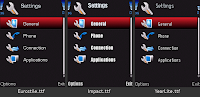
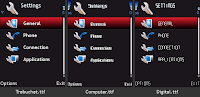
 I have provided these fonts for you to download and use.
Download Font Sample Zip
I have provided these fonts for you to download and use.
Download Font Sample Zip
 One good thing is you can use any .ttf font from your PC but avoid wide or thick fonts as they cannot be fully viewed on the phone in most cases.
Here are some fonts i tried out on my N95, Click on the image to see full size

 I have provided these fonts for you to download and use.
Download Font Sample Zip
I have provided these fonts for you to download and use.
Download Font Sample Zip WARNING - I am currently using the Eurostile font without any problems on my N95.
Please take care when carrying out any tutorial, If you are unsure and concerned about any possible damage to your phone, DONT do it.
 Change font on N95 tutorial
1. You need to download
Change font on N95 tutorial
1. You need to download  FontRouter20071109 .sis here. This applications need to be signed you can do this via the symbian signed website details in Section 3.
2. Install the application into the PHONE memory. You will not find any application icon in your Menu but there will now be a folder in C:/data/Fonts (As shown below).
Now to choose a font: Go to your PC and in Control Panel you will see the Fonts folder you can use any .ttf font, so rightclick on one you like (or use one i provided) and copy the file to the desktop.
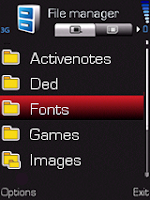
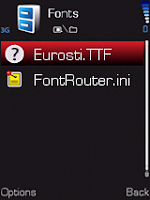
3. Now connect your phone to your PC via usb cable and move the .ttf file to your phone directory C:/data/Fonts, ONLY move one file in to the fonts folder. As shown in the second image above.


3. Now connect your phone to your PC via usb cable and move the .ttf file to your phone directory C:/data/Fonts, ONLY move one file in to the fonts folder. As shown in the second image above.
4.Disconnect your Phone from the PC and Restart your phone , the New font should be working straight away
Removing or Changing New font You will probably want to try a few fonts and some are quite bad in small text size, or decide that you want to go back to the default nokia font. It is possible to edit the .ini file to disable the new font but it is simpler to copy/move then delete the .ini file, then there is no need to editing tools.
Removing or Changing New font You will probably want to try a few fonts and some are quite bad in small text size, or decide that you want to go back to the default nokia font. It is possible to edit the .ini file to disable the new font but it is simpler to copy/move then delete the .ini file, then there is no need to editing tools.
1. All you need to do is copy the FontRouter.ini file in the fonts into another folder and delete the original .ini file. You cannot delete the font .ttf file as it is still in use.
2. RESTART your phone and the default font will be back, then delete the font.ttf file that was previously put in the fonts folder
3. If you want to try another font, put the Fontrouter.ini file BACK (that you just copied) in the Fonts folder with the new .ttf file and RESTART your phone again
4. I recommend putting the Font Samples folder i provided in C:/data/ so that you can copy the new fonts into the Fonts folder as you try them, it saves having to connect to you PC to get new fonts each time.
 Changing your N95 8GB Font
The main problem here is i don't have a N95 8GB to test the process on, so i have to rely on information written by other people. Guides for installing this application mention installing onto the mass memory (no memory card) but i dont think this is correct and i recommend using the PHONE memory. Follow the tutorial for the N95 classic but if you have problems you could follow the details below.
If you install to the mass memory you will need to make a folder in C:/data called "Fonts" and place the Fontrouter.ini file in the fonts folder. Then put any .tff file into the fonts folder and RESTART to see the changes.
You can follow another Installation guide for N95 8GB by barbioxdogg his instructions are :
I had problems when installing .ttf fonts on my N95 8GB but now i have finally found the solution.
1) Install FontRouter in your mass storage in N95 8Gb
2) using the x-plore app, make a folder in PHONE (C:/) named fonts
3) move the fontrouter.ini and paste in c:\data\fonts
4) edit the fontrouter.ini file with x-plore like this
5) search at:
;Extra font files to be loaded
ExtraFontFile=\Data\Fonts\*.*
and change to
;Extra font files to be loaded
ExtraFontFile=C:\Data\Fonts\*.*
exit and save the file
6) Copy your *.ttf font to c:\data\fonts
11. Multi-Media, Album Art and Mp3 Editing
 Radio
Radio
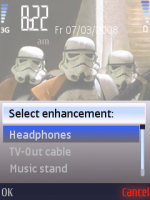
You can turn your N95 into a Mobile Radio by simply inserting your Headphones and Pressing CANCEL instead of selecting any of the other options. This will leave the sound playing from the stereo speakers in the N95. There are FM aerials available on Ebay for around £6 but any headphones work as the aerial, it makes a very handy Radio which you can use where ever you are, as long as you have a signal!
MusicPlayer
The N95 has a really good MP3 player with an 8 band graphic equaliser, loudness function, stereo speakers and of course the 3.5mm headphone socket that means you can use your normal headphones. The phone also can hold memory card to a least 4GB which makes for a very useful MP3 player, so take advantage of this feature and get yourself a good memory card.
Album Art
There are two ways to show Album Art on MP3 files.
1) You can embed your MP3 tracks with an image tag, This works fine if you are transferring an Cd or downloaded Album. You will a program to embed your MP3, i recommend Mp3Tag. You can also use WMP11 to embed Album art into MP3 files transfer.
2. RESTART your phone and the default font will be back, then delete the font.ttf file that was previously put in the fonts folder
3. If you want to try another font, put the Fontrouter.ini file BACK (that you just copied) in the Fonts folder with the new .ttf file and RESTART your phone again
4. I recommend putting the Font Samples folder i provided in C:/data/ so that you can copy the new fonts into the Fonts folder as you try them, it saves having to connect to you PC to get new fonts each time.
 Changing your N95 8GB Font
The main problem here is i don't have a N95 8GB to test the process on, so i have to rely on information written by other people. Guides for installing this application mention installing onto the mass memory (no memory card) but i dont think this is correct and i recommend using the PHONE memory. Follow the tutorial for the N95 classic but if you have problems you could follow the details below.
If you install to the mass memory you will need to make a folder in C:/data called "Fonts" and place the Fontrouter.ini file in the fonts folder. Then put any .tff file into the fonts folder and RESTART to see the changes.
You can follow another Installation guide for N95 8GB by barbioxdogg his instructions are :
I had problems when installing .ttf fonts on my N95 8GB but now i have finally found the solution.
1) Install FontRouter in your mass storage in N95 8Gb
2) using the x-plore app, make a folder in PHONE (C:/) named fonts
3) move the fontrouter.ini and paste in c:\data\fonts
4) edit the fontrouter.ini file with x-plore like this
5) search at:
;Extra font files to be loaded
ExtraFontFile=\Data\Fonts\*.*
and change to
;Extra font files to be loaded
ExtraFontFile=C:\Data\Fonts\*.*
exit and save the file
6) Copy your *.ttf font to c:\data\fonts
11. Multi-Media, Album Art and Mp3 Editing
 Radio
RadioYou can turn your N95 into a Mobile Radio by simply inserting your Headphones and Pressing CANCEL instead of selecting any of the other options. This will leave the sound playing from the stereo speakers in the N95. There are FM aerials available on Ebay for around £6 but any headphones work as the aerial, it makes a very handy Radio which you can use where ever you are, as long as you have a signal!
MusicPlayer
The N95 has a really good MP3 player with an 8 band graphic equaliser, loudness function, stereo speakers and of course the 3.5mm headphone socket that means you can use your normal headphones. The phone also can hold memory card to a least 4GB which makes for a very useful MP3 player, so take advantage of this feature and get yourself a good memory card.
Album Art
There are two ways to show Album Art on MP3 files.
1) You can embed your MP3 tracks with an image tag, This works fine if you are transferring an Cd or downloaded Album. You will a program to embed your MP3, i recommend
 Mp3Tag. You can also use WMP11 to embed Album art into MP3 files transfer.
To learn how to easily import image tags to Mp3 files click here.
2) You can manually add Album Art to albums within your N95, but you can only add Artwork to individual tracks or Albums not playlists or Artists. The advantage of using this manual system is that you can create or edit your own image rather than the original Album cover artwork. First create album art images 160px X 160px (smaller images are degraded when viewed, around 20Kb size).Transfer to phone.
Select: MusicPlayer/MusicMenu/Albums/(ie)TheStrokes/Options/AlbumArt/Options/Change/ Select Image/Yes(for all songs in the Album)
Mp3 Ringtones and Message tones editing
If you want to make music clips from MP3's the best freeware program i've used is Mp3Directcut. It's a brilliant tool to cut up any music or sound clip, so u can make a ringtone of text message sound. screenshot:

What's your message tone? we've all got our favourites. Ive found some cool websites with free sounds everything from StarWars, Homer Simpson to alligator grumbles.
Movie Wav Simpson Crazy FindSounds
SimplytheBest Ultrasonic Ringtones
You can save most of the MP3 files directly to your PC or Use Rightmouse and select "Save Link As" then save to your desktop. You can use the "Super" freeware program (in section 13. on MP4) to convert .wav files into MP3's.
Add your Favourite logo to your N95
 If you have a favourite Football team badge or logo of anything at all, that you want to display on your Phone, it really very easy to do.
 You dont have to create a Theme all you need get a copy of your logo and make the background transparent using Adobe Photoshop etc., then add it as you wallpaper.
For more info on creating the image or download the Man. Utd or Porsche Badges
Go to my Theme page (Middle of the page)
I have split N95 best tips into 2 parts to avoid the page being too long and improve loading times. To view part two just click on the text image above or click here
In section two you can find details on Nokia Maps, GPS set up, More Freeware Games & loads more!




77 comments:
wow nice post!
good work!
Hi! Do you know what software I can remove the shutter sound with (vide: "There is a program available to turn off camera tones")?
I've got Nokia N95 8GB and turning off warning sounds and switching to the silent mode doesn't work for me :/
I would appreciate this information.
Re: cyprian.pl
You can use cCam its a freeware program where you can turn off the camera sounds. More info see the link below:
http://www.symbian-freak.com/news/007/08/scam_transform_your_phone_into_spy_cam.htm
This site/post is the best. I visit everyday to see if its updated and every time it is am not dissapointed cause your always adding great stuff.
keep it up
CAN'T WAIT FOR XMAS PRESENT
could you give us a clue???
Hi i jus have a question bout ur recent update on the flash file screen saver.. how u make it last longer than 60secs? its not possible rite? then its reli jus a 60 sec screen saver isnt it?
Re: Hari.
Yes you are right, the maximum time to display the screen saver is 60 seconds.
man dat sux.. are there any app to eliminate that feature?! :)
All i want to say is thank you. GREAT SITE
Hey mate :)
Your blog helped me so much!! I really appreciate all the effort you put into helping everyone :)
Hey I have found your site every useful and i thank you for all the apps. and tips for my N95 also can you show me where i can get rotateme V.2 please i'm having a hard time looking for it. thanks
Hi I just found this site through Google search and i would like to comment and say what a GREAT SITE I just purchase N95 and i found this site very useful Thank you
wow great site, thanx for this useful blog...
i've a little problem...
i've tried to install some unsigned applications (e.g Rotate me) but always found certificate error, even after changing "Software Installation" property to "All" from App. Manager's settings.
What i've to do?
Any tip?
Thanx
Re anon cert error:
Unsigned applications need to be signed by you before they can be installed onto the phone.
If you have tried to sign the applications and still get an error , then something is likely to be wrong with the signing.
Section 3 has a tutorial on how to self sign applications, it is a bit fiddly but it works.
You can only sign for yourself as you certificate is valid for your phone only.
Excellent and high quality site. I've started visiting regularly as it saves me searching the web for new N95 goodies. Thanks for the work you've obviously put in.
THANKS :) Thanks to everyone who has posted such positive comments about this site :)
I didn't start this blog to get greatful feedback but it really cool to receive it!
THANK YOU ALL :)
nice work but i have a question. Why does the calender not show international holidays, national holidays, full moon , new moon......? you would think that if they made a calender, it would be updateable with out having to manually enter the information.
Does anyone know if the gallery key on the side of the phone can be disabled? Everytime I put my phone in the car cradle it comes on.
This is THE best site for N95s - keep up the good work
Re Gallery key:
I looked into the gallery key problem and i could not find a fix for it.
Some software can change the key's function but it wasn't satisfactory.
sorry
Would an automatic theme changer software make the Nokia N95 better? If there is?
hey
first off, AWESOME SITE!!!!!
secondly, do you know where on the sd card do messages get save?
i copied all my msgs onto my sd card but cant seem to find them when i hook up to my pc
Re sd card message location:
SD:\Private\1000484b\Mail\00001001_S\a\0010000a_F
not exactly sure about the last 2 sub folders,But there abouts. Private is a hidden folder accessible in data transfer mode.
hai dude great blog and sorry to miss all things goin on here me to a great nokia fan and thanks for all those great tips must see blog for any nokia lover keep it up your great work.
hey do u hv a software (free of cost) to lock messages in N95 8GB..??
looking forward to your reply soon..
tc
Re N95 8Gb Lock messages: I don't know of any freeware message Lock apps.
You could save any special texts by moving them to "My folders" from the Inbox options.
hmm...dat m already doin...
neways...thanx fr d consideration..!!
I Love your sie :) THANKYOU!!!
When I first got the N95 8G I was at a bit of a loss as to how it worked to it's full potential.. Your site helped me suss quite a few things out, let alone some goodies :) I'm pretty good on the computer, but knew nothing of phones, I rushed out as soon as the 8g was available (though it was with Vodafone Grrr). Anyway, just wanted to say your work is much appreciated.
Blue :)
Hi dude, u r doing a great job here. I signed the font router but the installation still tells me that the certificate is error. Could you help me out, i want to install a tamil font in my classic n95 model
This site has provided so much useful information regarding the N95. The best site I've seen yet... Keep up the excellent work!
Hey dude Great site....I got a problem...My N95 doesnot support SISX file....what should i do?Plz reply......
Re SisX files: you should be able to install .sisx files, it maybe that particular file.
I would turn off any extra applications you maybe running reboot your phone, then try to instal the .sisx file again
All the best
this sure is a wonderful blog but i have a question to ask..
it's been quite sometime after i updated my phone to v2 and after a moment, the photos that I've captured doesn't really appears in the image gallery.
and so i thought that formatting the whole thing could change the situation and i proceed to update my phone to v3.
unfortunately, i'm still facing the same problem .. oh btw, the same goes to all my music files as well. can i know what's going on?
Re Justin Gallery problem: Well i was surprised to hear you still had problems after the firmware upgrade.
They should be showing up, i expect the music files are on your memory card so i would look at card to see if there are any problems with the micro SD card.
If the images are also stored on the memory card then you might want to back them up on a pc the wipe the memory card, i did a basic tutorial on this in N95 Best T&T part2 section 23.
Also i would stop any additional applications that you maybe using and restart the phone incase of any conflicts.
lets hope this helps :)
well, just right after the process of backing up data (copy paste), I found out what's wrong with it already.
It's the folder "data" inside which consists of some foreign characters that neither the phone nor the PC could decode it.
So, I just format the whole memory (without backing up files) and, *TA-DA*. It's back to normal. Well, I owe you this, thanks a million!
sjc.
thanks for the info about v30 but i seem to have trouble upgrading to this version, my original code allows me to update to v20, so i tried debranding with a code that allows for v30 (checked with the nokia site) but my software updater says it cant find any updates for that code(tried different ones) It says my carrier my not have approved it yet? Does being with t-mobile and being in the US matter?
Thanks for your blog and any help you can give me. Its my first smart phone
is there a way to keep the 6 shortcut apps on my main screen, but get rid of the calender events of the day and the WLAN scanning status? i've tried looking all over
Re yosjsu: I am with T-mobile in the UK and i use a Euro1 code which allows for firmware v.30.
The differences can be the language packs, Euro1 (0534841)has English, French, German, Italian, Spanish, Portuguese. Full list of codes here
I used my phone in the U.S in 2008 without any problems but i cannot be 100% sure that using a euro code for your phone is ok, Without testing it myself it is a risk, its upto you.
I hope this helps SJC
Re yosjsu: No, there is no simple way to remove WLAN, etc on standby apps except with a hacking tool which can be quite complicated.
You can of course remove the standby Apps an have a much cleaner screen. This is done in the Menu settings. Then you could change the shortcut keys to your favourite applications.
Thats my preferred method.
Thanx For The Information You Provided.Its Really Of Great Use.
for more information about nokia n95 secrets codes , this a useful link
http://www.messiphone.com/mobile-secret/nokia-n95.html
hola he estado leyendo sus post por hace mucho tiempo,les quiero agradecer por este portal que es muy util pues me ha ayudado a resolver varios problemas con mi n95,tambien hacer un comentario acerca del nokia 5800,pensaba cambiar mi nokia n95,pero este fin de semana tuve la oportunidad de tenerlo en mis manos,pero lo siento no paso la prueba me quedare con mi n95 hasta que llegue el n97 por aqui,muchas gracias muchos saludos y hasta pronto. su amigo j.cat
Re j.cat: Muchas gracias, me alegra que se puede traducir :)
sjc,muchas gracias,realmente no he checado si se pueda traducir,me imagino que si,pero como vivo en indiana u.s.pues tengo que entender el english,de nuevo muchas gracias por tanta informacion valiosa hasta pronto su amigo j.cat
Hi there, I'd like to say thank you for the great job you are doing, i have used your site quite a lot and still checking for news once in a while...
Also would like to tell you about a service i use a lot on my N958gb, it's a site called moodio ( http://www.moodio.fm/node/1) it's free and you can use on most phones... after creating a account you can add radio stations from anywhere in the world to your favorite list, as long as the radio is streaming on line you can add it to theyr database.
done that, on your phone browser go to m.moodio.fm and you can listen to the radios on your list.
I use it a lot to listen to radios from my country (Brazil) and in case you don't know yet about the site, i think you will like it.
All the Best
Alex Gallis
I love my Nokia N95, another tip is you can get free ringtones from Mymixer
I have a Nokia N95 8gb (RM-421) V 1.2.011
I tried to “debrand” it with successful results, yet still the NSU keeps telling me that my mobile have no current update. I tried several product codes from the list posted in this blog, yet no results. Does this have to do with the version of my mobile (RM-421)?
Re N95 8GB product codes: Have you been using N95 Product codes or N95 8GB codes. A list of N95 8GB Product codes can be found HERE, the EURO1 8GB codes is 0549487 - EURO1.
Hope this helps :)
Thank for your response.
Indeed I have use the list of product codes for the N95 8gb, I was really aware of that, since I think there is danger to completely mess up the OS if you use the list in the wrong way, but still, the software upgrade did not occur.
Amazing work , appreciate your research on this.
Thank you very much. All the best for your future endeavours.
Regards
WR
I just purchased a N95 off ebay and didn't know all the cool stuff I can do wirh it until I found your site on google.
Hi,
Wonderful blogs that you have created. I was trying to look for answers for the "Share ur PC Internet with ur 3rd ed mobile by bluetooth" . I have tried many tools Hiisi3, Since I am away from my home GSM network, I wanted to connect the N-95 Bluetooth via my Laptop internet. I do not have Wi-fi router.Hence the need. Any "working" tips will be appreciated.
Re Anon Bluetooth: Unfortunately i can't help much on this either. I havent used that Bluetooth Setup in that way and it seems you have tried quite a lot of ideas already.
There is some basic info on bluetooth Here and a Youtube Video on Hiisi 3 Here
You can buy a cheap wireless router in the UK (Ebay) for a little as £12 now, it worth thinking about?
Sorry i can't be more help
all the best
hello there.. wow nice work...and could you help me for couple things. i just bought an N95-3 from ebay and after i checked *#0000# it show v20.2.011 date 13-05-08 RM-160 C nokia N95 (19.01)
at the last C nokia N95 its a copy sign, C with circle. is it a genuine from nokia or just the software? and do you have any trick to get know which one is fake and the real one with checking the software? thanks
Re Starluckism Genuine N95-3: The © Nokia N95 is the usual end display on the firmware screen. if you type *#06# this will show you your serial number (IMEI). If both of these work i would assume it is a genuine model
all the best
Hey SJC,
I have to admit this is by far the best N95 site. I have seen a few comments about the new firmware for the N95 (V35.0.02). I have tried to find V35.0.02 to download but I am unable to find it. Am I missing something? My current firmware is V31.0.017, and when I try to find an upgrade I am told I have the latest version.
Thanks in advance!
DUDE, Your a Legend!!
Re Brian N95 Firmware: If you can only upgrade to v.31 then you may need to change your Product Code (Debranding). Otherwise you could just wait until the v.35 firmware is available to all International Product codes.
All the best
MY N95-1 shows ONLY 27.6MB ram (via Jbaktaskman) and 60.2MB C drive)! is this normal? or low?
can i add ram?
Re Kris RAM: The size of RAM memory for a N95-1 is 48MB. Running in idle usually uses 20MB which should leave around 28MB free. The RAM memory is of course different to the 'Phone memory' which is a storage space for the operation system, applications and everything else.
The SD memory card gives you addition space to store Movies , music or install applications etc.
I hope this helps
thanks!
I am updating the firmware using the "nokia software updater v2.5.2-en-us"
It is updating my N95-1 form version 30.0.015 to 31.0.017!
But your web says there is an even later version 35.0.002?
what's going on? how do i get the latest and greatest 35.0.002 version?
Re Kris Firmware: The firmware available to your phone depends on the Product Code set in the phone. You can change it using additional software. Details on this are in Section 2 on this page.
hi, thanks for all the great tips/tricks. my problem seems like one of the most common: my n95 8gb keeps "dying" on its own and it starts up on its own as well. battery is fully charged, firmware version is pretty current(31.2.008/RM-421 --- updated it today) and i thought updating to this would fix the problem. but it's still doing it -- actually, it seems like it's become worse after firmware update. any ideas what could be causing this? do i need a new battery? what should do? should i just dump this phone??? i am so frustrated... HELP...
Re lai55: My N95 used to restart quite a bit in the early days. I am surprised you still have the problem with later firmware.
It is not usually the battery but a software issue, Some 3rd party software can cause a conflicts that can crash the phone. If you have a lot of apps/games i would try find out what is running in the background. But i assume your phone is pretty clean as you updated the firmware.
Dump or not to Dump . . .that is the question. The camera is the best thing on the N95, other basic features like Internet browser and GPS OVI maps work much better/quickly on the 5800. It's your choice :)
my N95-1 (NAM) has problem with SD card corruption playing VBR mp3 files.
anybody else have this problem? the card itself can be reformatted an d works fine after format, but again gets corrupt or the built-in N95 Music Player hangs on song menu's.
very frustrating. any feedbacks?
thanks.
Hi .. I am on Pay & Go and have this annoying message that pops up on my screen telling me my balance all the time .. is there any way I can stop this do you know?
Many thanks ..
Re Saffy On screen message: Apparently this is controlled by your network rather than your phone.
You could contact your network provider and ask them if it is possible.
i hope this helps
am in Zim and my N95 8GB is always telling mie to select network and i cant phone can someone out there help me
Re Anon Network message:
If you didn't have this problem when you first had the phone. I would do a Soft reset to get the original settings back. details in section 5 on the main page.
All the best
Hello,
I have visited your site and believe that your blog have the content that would would be interesting for my website (mobi94.com) visitors. I’m wondering if you would be interested in exchanging links?
Please reply if you agree at my point.
The link to your site will be posted as soon as you will reply to us at neo7sxn@gmail.com
Thank you very much,
Prashant saxena
www.mobi94.com
The information on this blog are so much interesting
free mobile java games
Hey I respect your blog a lot. I just have one question. I debranded my nokia n95 8gb and as i am waiting for the nokia software updater to find updates but it says no current updates available. My current firmware is v31.0.015 Please Help! Thanks.
Hey admin i want to ask you this. Since my Nokia Software Updater can't find new updates and it says there are no current updates available, what should i do. I am using v31.0.015 on Nokia n95 8gb. Help please, Thanks.
Re Darko N958GB Firmware: If you can not update to firmware v35 then you will need to change your product code.
Details on this are in "Section 2 Firmware Updates & How to Change Product codes to get Latest Firmware" on the main page there is a link to all N95 & N95 8GB product codes. Once you have changed the product code then you should be able to get v35.
All the best
you wrote: This applications need to be signed you can do this via the symbian signed website details in Section 3.
Where is section 3?
Re Shamim: Yeah good point! looks like i missed that bit when i tidied up the page.
Because many of the webpages have changed since i originally posted this blog i removed the original section 3.
If you want to sign N95 Apps there is a tutorial at HERE
Hi,
Is it worth hacking my N95 8GB to install a tomtom? Is there any other option to do that?Thanks
Re Hacking for Tom Tom:
Well its up to you, if you can find a good tutorial that works.
All the best
Post a Comment