
Embedding Album Art Images into Mp3 files

End Result
 The first thing you will need is a program to embed your Mp3 files. I recommend Mp3tag its is excellent and FREE. MP3TAG
1) Once you have installed the program, start it up and located an Mp3 album you want to embed.
2) Then highlight all the tracks and Select from the tool bar the World/ internet logo, Then select "Amazon. de" (usually works the best)

Click image to enlarge
3) A new dialog box will appear and you can choose the correct album, As shown below

Click image to enlarge
4) Then another dialog box will appear showing the files new infomation and Album Art. Click OK. As shown below.

Click image to enlarge
5) Thats it! you can now transfer the Album to your N95 phone and the Album Art will show up Automatically.
Editing Mp3's using iTunes
Apple iTunes can be used to edit Mp3 for N95 and N95 8GB, i personally prefer to use MP3tag but many people already use iTunes so i have created this simple tutorial to show how easy it is to edit Mp3 info and add album artwork.
You cannot edit the N95 directly using iTunes therefore you will have to edit the albums in your "iTunes Library". There is no need to register with apple to get artwork but you will have to manually search for the Album Covers, this allows you to create you own picture if you want.
Editing iTunes Library
1. First use Google Image Search to find the Album Artwork you want and save it on your Desktop (Make sure it is a exact square but cropping in photoshop if necessary) I recommend using images of 256x256 pixels or more and they must BE .JPEG or .JPG NOT .PNG files.
2. Open iTunes and select Library / Music from the left hand panel, there are 3 views formats List, Album and Cover flow (my preferred). I have used Cover flow as it easy to see the images.
3. Highlight the Album you want to edit by selecting all the tracks (Select one track and use Shift Key and select bottom track) then right click and select Get Info, as shown in the images below:

4. Now a Mp3 edit box will appear, Check that the Info is correct and if no Artist name appears it is because there are differences in the name. iTunes has a few categories which are useful to clear avoiding albums fragmenting.
I would tick the box but leave blank "Album Artist", "Compilation" and "Disc number"
Then double click on the Artwork box and locate the image you saved earlier.
Then click ok to complete
5. If you are adding a new image to an album with artwork, i have found it is better to remove the old image first, by checking the box and leaving blank, and then redoing the process with the new image.
6. That's it you should now be able to connect up you N95 and move the Tracks from your music library to your phone via the PC suite or Nokia Phone Browser.
Nokia Default Ringtones
 Do you miss your old polyphonic ringtones? Well probably not that much, But if you want to find an old favourite or just a bit of phone Nostalgia, here's something for you.
 The default ringtones on Nokia phones are stored on the internal memory and are difficult to extract but i have hosted some i found a while ago for you to download Nokia Tones Zip
Creating Ringtones and Message Alert tones from Mp3 music
This tutorial will show you how to create a short music clip to use on your phone as Ringtone or Message tone.
You will need an Mp3 music file (song), Mp3 editor (MP3direct cut), Pc or Mac to edit and transfer the file to the Phone.
Most Ringtones only need to be up to 20 seconds in length as an Answer phone will usually cut in at around 17 sec. Message tone length is your personal choice as you will be the one listening to it but usually they are less than 10 sec in length.
1. Download Mp3DirectCut and install on your Computer.
2. Start the program and Select File/ Open ... and select your Mp3 music file


3.You can now edit your song. Use the Play/Stop buttons to listen to the track, then select the Start of the track by using the Left mouse click and the End by using the right mouse click. As shown below left. Now go to Edit from the Menu and and Select Crop .


4. Now you have your music clip you can create a simple start Fade in and Fade out for the end of the Track. This can be easily done by selecting a short segment at the start of the track then go to Edit on the Menu and select Create simple fade. You can listen to the new edit by pressing the Play button. As shown Above right. Repeat this at the end of the track to create a simple Fade Out.
5. To save your new Clip go to File from the Menu and select Save all to save your ringtone. Now you just need to transfer to your phone via Nokia Pc suite or by bluetooth etc.
Two other useful features on Mp3directcut are:
To remove a portion of a track, just simply highlight the part you want to remove and select 'Delete' on your computer.
If the sound level is too high or too low, highlight your selection and Go to Edit / Gain here you can increase or decrease the levels (It is best to lock your left and right channels).
Personalised Album Art using MP3TAG and MP3 EXT (For PC)
If you want to embed Personalised Album Art into MP3 tracks before you transfer them to your Phone you can easily do this with MP3TAG, but first i want to show you a great freeware program for viewing MP3 files on your PC. This hasn't got anything to do with N95 it only works when viewing on windows PC, but its so good i had to mention it!
MP3 ext
This program was last updated in 2004, so its not new but its so under-used, i Love it!!. Below is an screenshot of part my MP3 music collecton. (Yeah they are all icons the album art work)
 When i view and Album details using MP3ext i can see the Bitrate quality of each track, below we can see that there are a few different quality rates.This is because they are downloaded from different sources. The program works on XP and Vista, you can choose different icon themes, but i have created my own, which you can see below, if you want a copy of the icon set. Click either icon below. I have updated the icon set and put some Install notes in the zip file as it can get a bit complicated to set the theme.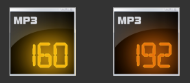

Adding Personalised Album Artwork with MP3TAG
MP3TAG is a freeware application for Windows PC that allows you to edit MP3 info which includes adding album art, which will show up in your N95.Applications like iTunes and Windows Media player 11 can add artwork to Mp3 tracks that you buy online but other music you may have download usually doesn't have any album art or has artwork on some tracks or poor quality images. Below you can see that the Thriller album has already has some album art, but strangely its of the cd back? and two other tracks have nothing, but using the MP3ext i can see the bitrate quality as an icon, rather than just showing a MP3 symbol.

Once you have downloaded and Installed MP3TAG you can rightclick on any MP3 folder using the shell extension and select Mp3tag.
Now select all the tracks ( Ctrl A) and in the Tag panel (which i undocked) right click on the Album Art circle symbol and select Add Cover


This will open a dialogue box where you can navigate to any image you have saved. I have found that the optimum size of an image for the N95 album artwork is 160x160px, although i make mine 256x256 because i view most album art on my PC, the larger image is compressed slightly by the phone which reduces the quality. I have downloaded 2 images of the Thriller, one traditional cover and one alternative take of the cover.
I simply select the image i want, adjust any other tags like Comments and Genre (Don't get me started) and select Save.


Now you can see that when i view the albums on my laptop In List and Details view you can see the Mp3 info and it shows the MP3ext bitrate as an icon (rather small), but when i increase the size in Tiles, Icon (Small, Med. and Large etc) i can see the album artwork i embedded earlier.
Now all you need to do is transfer it to you phone and the Artwork will now appear in your music player when you play the tracks.




6 comments:
Thanks for this! I'm using it for my N73 music edition. I don't know if it's because it's an N73 vs the N95 or if you may have run into this problem as well... but this only works with M4a files for me, not MP3. Any suggestions?
WoW it really works great, i have been wondering for a while how to transfer album art, but couldn't manage.Thanks for creating such an amaizing web site, its really usefull
Here's a tip for anyone attempting this. Embed the album art to the files before sending to your N95. I tried plugging in my n95 with the usb cable and embedding the album art directly and it did not work. However, if I do it on my computer then send the mp3s over to my phone it works fine.
Re Anon comment:
Yeah, Embed the MP3's before you transfer to your phone. MP3tag only works on PC, dont try to connected to you phone and embed via cable. I hoped that was clear in the tutorial. :)
all my albums have already got album art which ive put on thru iTunes. But even so when i put the tracks on my n95 it doesn't display it!!! very annoying!! can you help???
Re Itunes Album Art on N95:
i'm glad you raised this point, basically Album Art can be a jpeg or a png, I prefer png's as you dont get the artifacting around letter etc BUT they dont work on the N95 music player!! only jpegs work with the N95 music player.
I noticed this a while ago, I have just created all the album art for my 160Gb ipod to show using coverflow only, It is quite beautiful and i used jpegs incase i want to transfer them to my N95 :)
Post a Comment