
Updated: 25 Sept 2009
This is part two of N95 Best tips and Tricks, to see Part one click the
page title above.
 12. OVI Maps, Mobile GMaps and GPS
Well I have created 3 tutorials here on:
1) GPS activation on N95
2) Nokia Maps installation and use on N95
3) Mobile GMaps using internal GPS and GoogleMaps
In the detailed tutorials i have found Workarounds for Nokia Maploader v.1.1 XP/Vista errors, Google Images restrictions on MgMaps, and details on how to use the free Nokia Maps.
13. Change your Delay time for Voicemail diverts on N95 & N95 8GB
If you are fed up missing calls because your Voicemail diverts too quickly then this tips is perfect for you! Firstly thanks to Dave Green who contacted me about this issue.
To change the delay time of your Voicemail you have to send a special message to your Voicemail box.
There are a couple of points worth mentioning:
● This tweak only works with Pay monthly Accounts NOT "Pay as you go" customers.
● There are Old and New Voicemail box systems which need different codes.
● As the Voicemail box is specific to your operator there are variations to the code.
● The maximum time delay is 30 seconds in 5 second intervals (5,10,15 . . .)
● I found 25 seconds worked but not 30 seconds on T-Mobile UK.
The Code is:
**61* (international mailbox no. +4479. . .)*no.of sec# then send (Green Call key)
or
**61* (international mailbox no. +4479. . .) *11* no.of sec# (if 11 doesn't work use 10) then send
New Mailbox System
**61*12107(international mailbox no. +4479. . .)*10* (no. of seconds)# then send
 You can get your international mailbox number from Menu/ Tools/ Utilities/ Call Mailbox. There you should see your number +447912343455 for example.
To check if you are on the New or Old mailbox system press *#104# then send, if you see your mailbox number you are on a new system if you see "Request not completed" then you are on the old system like me!
The screenshot (left) shows a code example using a 25 second delay.
14. Using WLAN Wireless connection for the Internet
It is quite simple to use the WLAN wireless connection on your phone. Obviously you will need a wireless router and know any password set. On your phone select Menu, then select your browser Web or Web 'n' Walk (T-mobile) etc. A message "Connection to server needed, connect?" appears select yes and you should see a list of Access points. Top of the List you should see "Search for WLAN" press yes a list of available networks will appear with a signal strength indicator on the right, select your choice and it will ask you for your password if needed. That's it !
If you don't have the choice of Access points and you connect immediately to WAP then you just need to change it by selecting Options/Settings/General/Access point and select Always ask.
Using the WLAN is faster than WAP and of course free.
NOTE ; Make sure you have turned off your Browser when using WAP connection as you maybe charged extra (depending on your contract) check to see if it is still running by holding down Menu key. If it is then select/open it and under options select exit!
15. Battery Life!
Well by now I'm sure you realise that the battery life on the N95 is pretty poor, Its fine if you only send the occasional text but as a multimedia device! Well its a joke!
There is no way around it find your old N70, N80 chargers and leave one at home,at work, in the car etc
First off don't waste your time buying a slightly larger battery which are available on the Internet,
The N95 comes with a standard BL-5F Li-Ion battery with 950mAh other non Nokia batteries have 1000mAh but this increase in size is so small u will never notice it and more importantly these batteries are mostly Li-Poly and have had problems in the past with exploding!
There are a few good basic tips however to get the best from your battery, Most are common sense but its worth checking you've done them,
1. The best power save is by turning of 3G network searching (based on U.K reception) To do this Tools / Settings / Phone / Network / Network mode, Set to "GSM" not Dual. If you can get a strong 3G signal i would actually leave the phone in "Dual mode" as i found it does not effect the battery life as much i first assumed.
2. Packet data connection set this to "when needed"Connection" To do this Tools / Settings / Connection / Packet data, Set Packet data connection to "When needed"
3. Wlan scanning, make sure your Wlan scanning is turned off, To do this Tools / Settings / Connection / Wireless Lan / Show WLAN availability , set to "Never", dont worry you can still connect to wireless routers at home, it will do it automatically when you select "web and walk" for example.
If you use Wlan a lot the its a good idea to turn down the Wlan transmit power to 10mW To do this Tools / Settings / connection / Wireless Lan / Options(top left key) / Advanced settings (Ignore the warning select yes) scroll down to TX power level and select 10mW
4. Animated Screensavers, i don't see much point in having them running when your not there anyway, and u can save a bit of battery just selecting Date and time, To do this Tools / Settings / general / Personalisation / Themes / Power saver and select "Date and Time"
5. Reduce screen display times, To do this Tools / Settings / General / Personalisation / Display / Power saver time set to 1 minute (minimum)
Reduce Light time out To do this Tools / Settings / General / Personalisation / Display / light time out, Set to your preference.
6. Turn bluetooth off , Its really easy to turn bluetooth On and Off, just use the preset voice command, just hold down top right key and say "bluetooth" when prompted repeat to turn off, to search for devices you will need to locate the application from the Menu
7. Don't leave applications running by accident, check by holding down Menu key, select the unwanted app. then from the options select exit.
8. Don't leave the camera on! unless you are using it, obvious but its better to open /close than leave open.
Thanks to keffa for some good info on battery life.
16. Games, The Best freeware games?
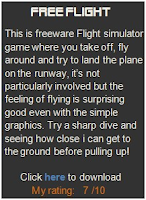
I must admit i don't play games on my N95 that much, i really don't get the time, and i prefer to play on PC when i do play games. I have listed Freeware games which now includes Space Invaders (like), asteroids,Free flight, Global Race, Chess, Sudoku, Tetris, Same Game, Quake and The Journey.
These freeware games are in three main formats:


 .SIS .JAR/JAD .SWF
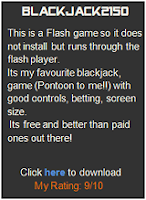
The sis file will instal using the Nokia pcsuite Installer. The jar/jad files can be moves to your phone or external memory and instal by opening the Jad file. The .swf is a adobe flash game which is also simple to use , it doesnot instal but you can simply transfer the file to your phone/external memory (i usually put in the "other" folder). Then go to Menu /Applications/ Flashplayer open the player and you should see the applications listed. You can change the quality, screen size etc.
Have fun they are all free!
 PacMan
This is a version for S60 3rd edition phones by the original manufacturers Namco. It works in full screen with sounds. I have created a zip folder with 2 Pacman themes and original game sounds for you pc or phone.
 Space Invaders
This is a exact copy of the 1979 second edition of the classic arcade game Space Invaders by Taito. It works in full screen with sounds.
 Quake
QuakePC game which is possible to use on N95 but you need follow difficult install directions. If you can get this one to work, i'll be impressed.
Instructions Simply Symbian
 S-Tris 2
Well its Tetris, It got a good options features, You'll need them to stop the awful music. All in all simple fun
Download the S-Tris 2 v1.40 S60 v3 (Symbian 9.1) 240x320 QVGA portrait here


17. Flash lite & Animated Gif Screensavers

 Here are 2 free online animated gif creators, that you can use make Screensavers for you N95 or N95 8GB.
1. Ownskin
You can create your own animated gif with upto 10 images, there are good options to change backgrounds, colours and effects. You can also share and download other screensavers created by other ownskin users.
2. Red Dodo
I came across a good post from Symbian Freak about Animated Screensavers recently.
 Redo Dodo have a Screensaver Generator where you can create Animated gifs online and download them for free. They have 30 templates to choose from and you can add from 8-17 characters or letters.
Once you have downloaded the .gif you can transfer it to your phone and set it as a Screensaver from Menu/ Tools/ Settings/ General/ Personalisation/ Themes/ Power Saver/ Animation/ Animation File. Then select the Screensaver from the a list.
I realised that you can create your own Animated gifs in Adobe photoshop which you can use in your phone so i will post a tutorial for that soon.
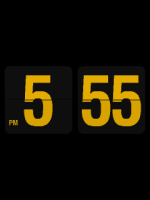
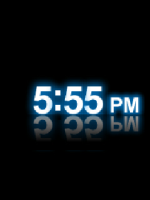
 The N95 comes a free application called 'Flash Player' made by Adobe its full title is Adobe Flash Lite. This application can be use to Play games, run basic applications (like Wikipedia Search) and Screensavers.
There are some pretty cool screensavers around for lots of different tastes, here are a few examples:

Here is a good website with lots of Flash applications:Mobile9
Displaying Screensavers
If you want to display a Screensaver on your phone, you need to got to Menu / Tools / Settings / General / Personalisation / Themes / Power saver / and then choose Animation.
Changing Screensavers
To change your screensaver, follow the instructions above and while on the Animation section select Options / Change / Animation File , you can then browse from the available .swf flash files on your phone.
Setting Screensaver Time
To set the Screensaver duration go to Menu / Tools / Settings / General / Personalisation / Display and there you can adjust the Powersaver TimeOut and the Light TimeOut.
How Much Power does a Screensaver Use?
Well the flash applications use a lot less Ram than i originally thought, Although different files will use different amounts, ones i tested (Launching and playing flash lite files) used on average 2.2Mb of ram which is a lot less than most games and the actual animation only used 0.2Mb ram.
18. N95 and N95 8GB display indicators
I have compiled a list of the Display Indicators for the N95 and N95 8GB. They are taken from the handbook, so if you have lost your copy or just can't tear yourself away from your computer, you can see the list here.
Click on the Image below to view all the Indicator Icons and save the .png

or you can download an editable Word .doc version below

19. MP4 Video Clips For N95
Converting and transferring Video Clips to your N95 is pretty easy.
1) The first thing you need is a Video clip, this can be an avi, mpeg, wma, vob etc. you may want to edit a dvd to smaller clips but for this you will need to use a dvd ripper.
2) Now you need to convert it to MP4 so the N95 can play it. i have found a good freeware program for this though i did have problems in the past with 3gpp clips having problems of Audio-sync but it's much better when converting to MP4. The program is
 Super
Super20.Broadcast yourself live with qik
 You can Broadcast yourself live to the world with qik.
Whether you want to be a film maker or share your day qik allows you to stream video live from your phone via an internet connection.
You need to sign up to the website Here.
The website says: "Qik is a little piece of software that enables you to stream videos directly from your phone to the Web. Use it to stream engaging videos to your friends in Facebook, Twitter, etc. or as your camcorder to capture entertaining and special moments"
I have found watching qik videos works well on PC but not so good on my N95. This is fairly new technology and improvements are sure to follow very quickly.
21. Camera Tweaks
The camera tweaks below work on original N95 but many people with N95 8GB have found that these tips don't work, in that case you may prefer to use a application like cCam which allows you to turn off camera tones, or simply to turn your phone to silent quickly by holding down the # key on the keypad.
Turn Off the Camera Capture tone, Well if you dont want people to know you're taking a picture of them or you just don't like extra noises, there are two simple ways to remove the sound the camera.
1. In your Profiles Menu/ Profiles/ General/ Personalise/ Warning tones/ set to OFF. The obvious drawback is that you will no longer receive warning tones like Low battery alerts.
2. The other way is to select the Silent profile or create a profile called "Secret Camera" etc. and adjust the Warning tone to OFF. But you need to make sure your silent mode setting has Warning Tones set to off! Many people have found that this tip doesnot work N95 8GB.
The camera has 4 basic capture sounds which are changed by activating the camera and selecting Options/ Settings/ camera tone.
It is possible to change the camera tones but it is a complicated procedure requiring additional software. I tried it and gave up after some time!
To stop the Automatic flash : Activate Camera, scroll down the side icons to Flash mode and select off, the automatic setting is useful but often unwanted in lower light levels.
There was a bug in the earlier firmware version 10.0.0.018 that set the picture sharpness to HARD. To check your setting is Normal: Activate Camera, scroll down the side icons to Sharpness and select Normal.
22. N95 Micro SD memory Card Improvements & Fixes
 This Section has guides on:
 1. Completely REFRESH your Memory Card back to only necessary Folders (default & personal folders)
2. Remove old Artist/Album details from N95 Music player
3. Removing old Applications and Themes stored on the Memory Card
1. Completely refresh your micro SD memory Card back to only its essential folders
The benefits of this are:
1. Increase Space on card by Removing unnecassary Files and Folders
2. Improve Performance of Music Player and Gallery (with new firmware versions)
3. Remove Dead Traces of Old Themes and Applications (still showing but not functioning on phone)
The disadvantages are:
1. Any applications installed on the memory card will be lost, or need reinstalling.
2. You will loose data like Nokia Maps which will need to be downloaded again but they often contain new info so a new version is always useful.
3. You run the risk of loosing data by making some small mistake in the process below.
I realised a while ago that the memory card on the N95 stores a lot of data that often becomes unnecessary. These files and folders hold data from applications like games, themes and programs, once these applications are removed a lot of the old data remains and in cases of the Music Player actually restrict its functions to that of the earlier versions. I decided to Completely refresh my MicroSD Card by carefully removing ALL the Files and only restoring the default folders and the essential ones i wanted. Below are 2 screenshots the first of the existing folders on my Memory card, the second the Default folders necessary on the N95 memory Card.
So if you have had your N95 for some time now and regularly use the memory card i would recommend cleaning up your Memory Card.


The process for cleaning up your memory card is quite simple. I prefer to remove my Memory card and Connect via the external Card slot on my Laptop, the transfer speed seems to be faster but i have used USB cable connection on the guide below incase you do not have a Memory Card slot.
1. Connect you Phone to your PC via USB cable and select "Data Transfer mode" on the handset.
2. Open up My Computer and open the Memory Card
3. BACK UP all your files by Copy/Paste all the folders from the memory Card to a new folder on your Desktop on the PC.
4. Now DELETE all the folders on the Phones Memory Card
5. Disconnect your Phone from the PC. The default folders will be created by the phone automatically on disconnection from the USB cable.
6. Reconnect your phone to your PC via USB cable and Copy all the essential file that you want like
Video files, Music files and Images this could take some time depending on the amount and size of the files you have.
7. Finally disconnect your phone from the PC. When you restart you Music Player for the first time it will look for new entries, i would Cancel the operation and manually refresh the Music library from the Options, it just seems to work better.You may need to reinstall any applications that were deleted but I recommend installing all applications to the Internal Phone Memory not the External memory. I also got new Nokia Maps (which was an updated version).
That's it your Memory Card should now be in Perfect Condition.
2. Remove old Artist/Album details from N95 Music player Tutorial
 I noticed a while ago that the Music Player kept all details of Artists/Albums even when i had removed the songs and wouldn't allow me to delete them. When i tried to delete them i would get an error message "General: Feature not supported". Artists spelt with different case's would stay listed like "the Strokes" or "The strokes" and even when i manually changed their name the reference would remain.
I have noticed that with later firmware versions now v.21 that this problem has been fixed, but i was still left with the old references!!
So i had a look around the Nokia Forum to find this Fix.
Problems Associated with this Fix
1) I lost 1 of my 7 Playlists even though the tracks were still visible from "All Songs".2) The MusicPlayer Memory will be wiped "0 Tracks" and will automatically reload all the tracks which initially caused a long delay in refreshing. It worked better for me to remove/ reinsert the memory card rather than trying to initially refresh the Music Library. Backup your files on your PC incase you loose some data.
Remove Old Artist/ Album details Tutorial
I recommend making a copy of the files and saving onto your PC rather than deleting the files straight away, just incase there are any problems
1) On your PC you will need to have allowed to "Show" hidden files, do this from Explorer/Tools/ Folder Options/ View and select "Show hidden files and Folder"
2) You will need to connect your phone to a PC via usb cable and select the "Data transfer" mode.
3) Go to My Computer and open the Memory card, the 3 folder you are looking for are : 101FFC31, 101f8857 & 101ffca9 they should appear on your PC similar to the image below.Click on the images to enlarge.

4) In the folder 101FFC31 there will be 2 files the mpxv1 is Music data and the pcv5 is podcast data. (Make a copy of .mpd files on your PC just for backup) delete both files NOT THE FOLDER.

5) Now go to 101f8857 /cache/ E in there you will see around 40 .dat files (Make a copy of the E folder and save to your PC) Now delete the .dat files in the E folder NOT THE "E" FOLDER.

6) Now finally go to 101ffca9 (Make a copy of the .dat file on your PC) then delete the harvesterdb.dat file NOT THE FOLDER.

7) Now exit all open windows, disconnect your phone from the PC, you are finished.
All the Files will automatically be created by the phone once you open the Music Player.
8) Now when you open your MusicPlayer it will show "0 Music & 0 Podcasts" but it should automatically rescan for files, If you have a lot of tracks this can take a long time, so i found it easier to "Cancel" the action and Remove & Re-insert the memory card. It then found all the 415 tracks easier i still used refresh a couple of times and it found 4 more.
 You should now have a much cleaner Artists list, i also found that i can delete old artists details with my Music Player v.21 firmware, so i wont have to do this again!!
Go through you Playlists and check for dead references. As i mentioned earlier i lost the track references to 1 Playlist, it was quicker to delete that Playist and make a new one
The Backup file copies on your PC can be deleted once you are happy with your Music Player details.
23. Removing old Applications and Themes stored on the Memory Card
Many people have noticed that after a firmware upgrade or a Hard or soft reset some old themes still showed up on the phone. I had this problem, the applications showed up in the App.Mgr but i couldn't remove them.
This is because i installed them to the memory card and some information is still stored in the card but it is incomplete causing errors.
It is possible to remove these "Bits" and clean up your applications list. You will need to do on a PC, i have tried to do it directly on the phone but it doesn't work as well as the Private files are protected.
Removing Old Themes from the Memory card
The Files you will need to change are "Hidden Files" so you will need to "Show" hidden files on the Computer, to do this,
Open any Folder and select "Tools" then "Folder Options", then in the "View" tab select the button "Show hidden files and folders" (highlighted in Red) see below.

1. Remove the SD Memory Card from you Phone and insert the card directly it to you Pc/Laptop or connect via usb cable.
2. Navigate and open the Memory card, you should then see a list of folders open the "Private" folder. Now locate the Folder 10207114 highlighted below in red.


3.Now locate the Import folder inside 10207114, in there you should see the folders with MDM, MIF,SKN files. These are the files you want to delete, DELETE the FILES NOT the FOLDERS
If the files are titled "themepackage", You can open these files with Notepad and you should be able to see their titles if they are not displayed. as shown below.


4. You may find references to old themes in Memory card/ Resources/ Skins, have a look and delete and files there too (Delete the files not the folders).

5. All that is left now is to put the Memory card in your phone and the Themes should no longer exist!
This tutorial is based on the post by Zach @ Symbian in Motion
24. Shazam on N95
Shazam was originally launched in 2002 and is a music identification program that identifies music from short segment captured by your phone, The application takes a 10 second recording of the music, connects to Shazam via an internet connection (This will cost extra unless you can use free wireless) to find a match and displays the result together with a picture of the album artwork and any products available to buy relating to that track. There webpage says "Shazam is now used in a variety of ways: callers can use it to discover new music and get information about something they haven't heard before, search for a specific interest, buy a range of music products or simply used as a way of remembering what's playing so that they can buy it later, or just to create a collection and even pass it on to friends and family."


Shazam has now released a new application for S60 devices simply called Shazam. You can download it for free from the OVI Store until 30th Nov 2009. At the end of the promo, to continue using Shazam you can download a new app and use Shazam Lite** with limited features and tagging for free; or pay once for unlimited tagging and full features. Shazam OVI page below:
ShazamOVIStore
There is also a simpler way to use Shazam and that doesn't require any software but it is more expensive:
Simply dial 2580 on your mobile phone and this will start this music analysis, but this costs for the £0.50 per tag and further charges for Fees are charged by premium rate SMS as it requires an internet connection for completion.
25. Back Up & retrieve your Contacts to your Memory or SIM Card
If you have ever lost your "Contacts" from your phone memory you will know how difficult and time consuming it is to make a new list not to mention sometimes impossible!
Nokia N95 & N95 8GB both make it easy to Save and Retrieve your Contacts to your Memory card or SIM Card.
To Save your Phone Contacts to your Memory or SIM Card:
1. Go to your Contacts Folder either from the Main Menu or a preset shortcut.
2. From the Options select Mark then select Mark all.
3. Now all your Contacts should have a tick by each name.
4. From the Options select Copy then select To SIM directory
5. Now select All (or preferred option) then select OK. The screenshots below show the Main steps


To retrieve your contacts from your SIM Card: Go to Contacts/ Options/ SIM Contacts/ SIM directory.
I use this method after Firmware updates to retrieve Contact details.
To retrieve your Contacts from your Memory Card: Go to Contacts/ Options/ Copy/ From Memory Card.

26. Free Underground Transport Maps
I noticed a while ago that there are applications to view underground transport maps. But why not just use a Image/Picture in GIF or BMP format and view it from the gallery using "zoom in".
 I have found a website with links to transport maps worldwide. Scroll down to your City you want and open the image full size and right-mouse on the image and select "Save Image As ...". Then you can transfer to your phone via Nokia Pc suite, Bluetooth or USB Data transfer. Very large images may have a problem using too much memory in 100% Zoom. but most i have tried work fine even at 200% zoom!
Here are three you can download Manhattan Subway, London Underground and Paris Metro, just click on the image to enlarge:


27. Wikipedia on your N95
 I have been looking for ways to get Wikipedia on your N95 quickly and easily. Wikipedia is as i'm sure you know a online encyclopedia style website with loads of information on just about anything.
I have found 2 ways to quickly access the website. I have shown full size screenshots so that you can see the quality of the text and images.
To give you an idea of how the webpage looks like on a PC i have shown the basic search page for . . . "dogs" i often use this search word because it rarely contains any porn links/ads and its simple to type!

1. Wikipedia Mobile
This is a Flash application by rhishi which allows you to type in your search word before you connect to the internet. The Layout is clean and simple with an easy to use search bar, the quality of the text appears blurred as you can see from the screenshots below. I also had problem of loosing connection to the internet (GPRS) whilst searching for further details. for more details click on the title.


2. UnyverseWikipedia
This is a java application which searches wikipedia and also has added features of
- Showing hyperlinks from text shown on original pages
- Starring function for articles
- 3 different size fonts
- Compressed format for bandwidth optimization.
It has a much more precise look and feel, although not all of the images were displayed. There are a few other useful features click the link on the title text to view.


28. Barcode Reader

 The N95 come with a free application called "Barcode" (located in Applications). It reads using the camera QR codes (Quick Response) a matrix type code created in Japan in 1994 . You can create text messages, URL's, phone numbers even SMS messages and send them to friends or anyone who can read them. Webpage addresses can even link directly to the website.
Online QR code Generator here , and more info here
29. Video calling, Video centre, & Life Blog Tutorials
Here are Tutorials on :
Video Calling Setup
Using the Video Centre
LifeBlog Setup
All the tutorials are provided by 'KnowyourMobile'
30. How much power do Applications use?
This data was based on the v12 firmware and i will show new improvements with v20 firmwareI soon.
I have been testing out how much RAM different applications use. I used Active File onscreen memory monitor which shows the memory left when running different pre installed applications ans external third party applications. It is worth noting that the memory use can fluctuate, so the results will often be different, but as a general guide they show just how much memory use applications like the Camera and games really use. (I will be adding more details to this section soon). Click on the images to view details.






38 comments:
Can't download Pacman and Robocop as the URLs seem to be incorrect.
Re PacMan & RoboCop:
Thanks,I missed those ones. I have fixed the links now. They should work fine.
Hi,
I installed TimeBar as per the instructions, but the voice alert doesn't work (nothing happens at the hour). If I use tone alert then it works. I have checked that I put the voice MP3 files at the right location ie. c:/Data/Sounds/Timebar in phone memory. Any ideas?
Thanks
Re Timebar: In the timebar settings choose "Voice" in the Hour Alarm.
Then makes sure the Voice path is set to the "C" location.
Make sure the the file is C/data/sounds/timebar/00mp3 . . (all files) etc
not timebar/timebar/00mp3 . .
i tested the settings and they work fine, so it sounds like a small adjustment needed somewhere
Hi,
Yes, I have checked all those things many times, but TimeBar still doesn't work. I am using N95-8GB, this shouldn't make any difference, right?
I have the N95 8gb, how do you set an photo as a full screen wallpaper? It doesnt seem to do it
Re Full screen photo: If you place a image/photo as the background it will not be full screen.
The best way to show a full screen wallpaper is by creating a Theme.
You can create themes with your own photos online or create on yourself on a PC. There is a lot more info. on themes on my main page section 6
hi something happened to my n95 phone screen and now i cant see anything. do u think u can post a video tutorial of how to copy phone contacts to sim contacts? i would really appreciate it! or if u know anyone else who would be willing to do it?
Re Sim card contacts:I have just posted a short guide on transferring your contacts to you SIM card on this page.
get site, how about a list of the best non-freeware apps for the n95
Re Carlos:d : I dont intend to review non freeware apps but if you want some S60 reviews visit Symbian in Motion
Thanks for the comments :)
there is a useful freeware application called magickey (unfortunately unsigned) that enables n95 users to use multimedia keys for other functions in other applications (e.g. left/right in games) just like n96
Hey there,
can you please help me, I want to view my contacts listhowever, whe I push the button to open it, it won't do anything, as if it can't open it, and it just will go back to the menu.
please contact me on richarddentoom4@hotmail.com
thanks
hi there bro, you said that n95 8gb support .sis games. just askin why "Installation of 'InfiniteDreams Explode Arena v1.1.sis' not supported."?? why is that? is there a way that i can install this game to my phone?
Re InfiniteDreams: .sis games will work on N95 and N95 8GB if it is saying "sis' not supported."? then most likely the game or version was made for a different phone model. InfiniteDreams has been tested on Nokia7650/3650/3660/6600. You may be able to find a different version.
web n walk is not working.. when i click on it the screen goes blank and then returns to the menu screen.. i tried resetting but it still did not work
Re nikash: Sounds like your Web'n'Walk is crashing. If you have already reset your phone, i would upgrade the firmware (main page) as it is likely to be a software problem.
I would also look at any 3rd party applications that you may have running that could be causing a conflict, turn them all off, restart the phone the try W'n'W.
If it works fine then an app maybe the problem.
I hope this helps
I just loved the blog; I am here to request one application if I can be helped. It is simply superb and allot of effort must have been required to establish something like this.
My Request is:
Here was built in video editor in Nokia N72, N73 and N93; may be some others. With the help of which attractive montages could be designed; plus sending video via MMS was possible.
Please can someone provide any such video editor/converter that works over N95; will be grateful.
Thank you.
Re Rizwan: You can get Video editors for PC Nokia Video Editor 1.3 Did you want an extracted version of the default N73 video editor. If so i can't help sorry.
Maybe some one has an extracted version it, lets hope so.
All the best
Hey MaN your blog is extremely AWESOME!!!!
After surfing the entire part of the blog i hav found that 1 application relating to mobile tracker(freeware) is missing.......
try 2 post it mate, please i'm in dire need of that.
even though u r gonna post it or not, i'm heartfully applausing your blog IT'S G R E A T.
Re Prince Mobile Tracker: There seem to be some Mobile tracker applications that have 'Come and Gone'.
I have found a link to a free download Mobile tracker app but i really don't know much about it.
http://www.bofan.cc/product_477_Mobile-Phone-GPS-Tracking-Software.html
I hope it helps
SJC, thanks a lot for all the tips. it's very very useful. keep it up!
I tried to install Pacman but it said I think that the certificate was out of date. I would love to have Pacman....how do I get it to install.
I finally got pacman to install. I didn't read the instructions. I tried to run the .sis file and I should have opened the .jar file
So gg ur page M8 i have a question about this i have nokia n95 8gb vs 35.2.002 RM 421 but my mobile are so fine that vs have a problem?.. and this when i was upgrade i was lost some equalizer like 3d bass and much more i have few now how i can repair that plxx ...
Re Anon N95 8GB: If your Firmware upgrade didnt work properly i would reinstal the new firmware via OVI suite or reload the current firmware using the *#7370# code on the phone keypad.
There is no guarantee it will work but its your best hope to get the features back you are missing.
All the best :)
Thank you for putting this together it was a great read.
One thing I noticed was that you are no no longer able to sign the Fontrouter program using the online signing system you could probably use helloOX2 though :)
Thanks again
Matt
Hi,
Is there a way to extract/copy the default tones and sounds which come with the N958G? Like the message, alarm tones.
Well done for this site!
Re Anon Default ringtones: It is not easy to extract ringtones from the hidden folder but there is a wesite that has already done it, so just download them from Gizmogates more details are on my Album Art page.
i hav n95 8gb.in application manager thre s a unknown file that when cant removed.when i select remove a message shows up "remove failed!"pls help me
Re Public : When you get "Remove Failed" its usually a protected file, it maybe important but it may just be some preloaded network stuff.
I assume you read section 23 on this page and the three parts in that section, It shows you how to manually remove files remnants via a PC.
Thats the only way i know to remove odd stuff but i would be sure they are the correct files or you can cause problems with you phone.
I hope this helps
Hi, is there a way to store all incoming and outgoing calls and sms in some folder in the Nokia N95
Thanks guys for reply
Re Store all Messages and SMS: When you say Incoming messages i assume you mean a Log.
You can use the OVI suite to back up messages and Log via BackUp feature, although i haven't tested it myself.
You can change the Memory location for SMS from Phone or Memory card from the Messaging settings select Messaging>options>settings>other and the choose the memory to use.
I hope this helps
i am using n95 8gb...my firmware is pretty old..v.15 RAM 320..i hacked my phone using DrWeb and Rompatcher...now there are new updates..latest one is v.35...if i want to update which firmware will b best for me? If i update will i be able to hack the latest updates? What's your suggestion.
Re Anon 8GB firmware: I think you maybe correct in that latest firmware version may not be hackable. Its up to you if you want newer firmware which mostly has performance improvements or stick with a hacked easy to use phone.
All the best
Post a Comment